Installing the Online Bible
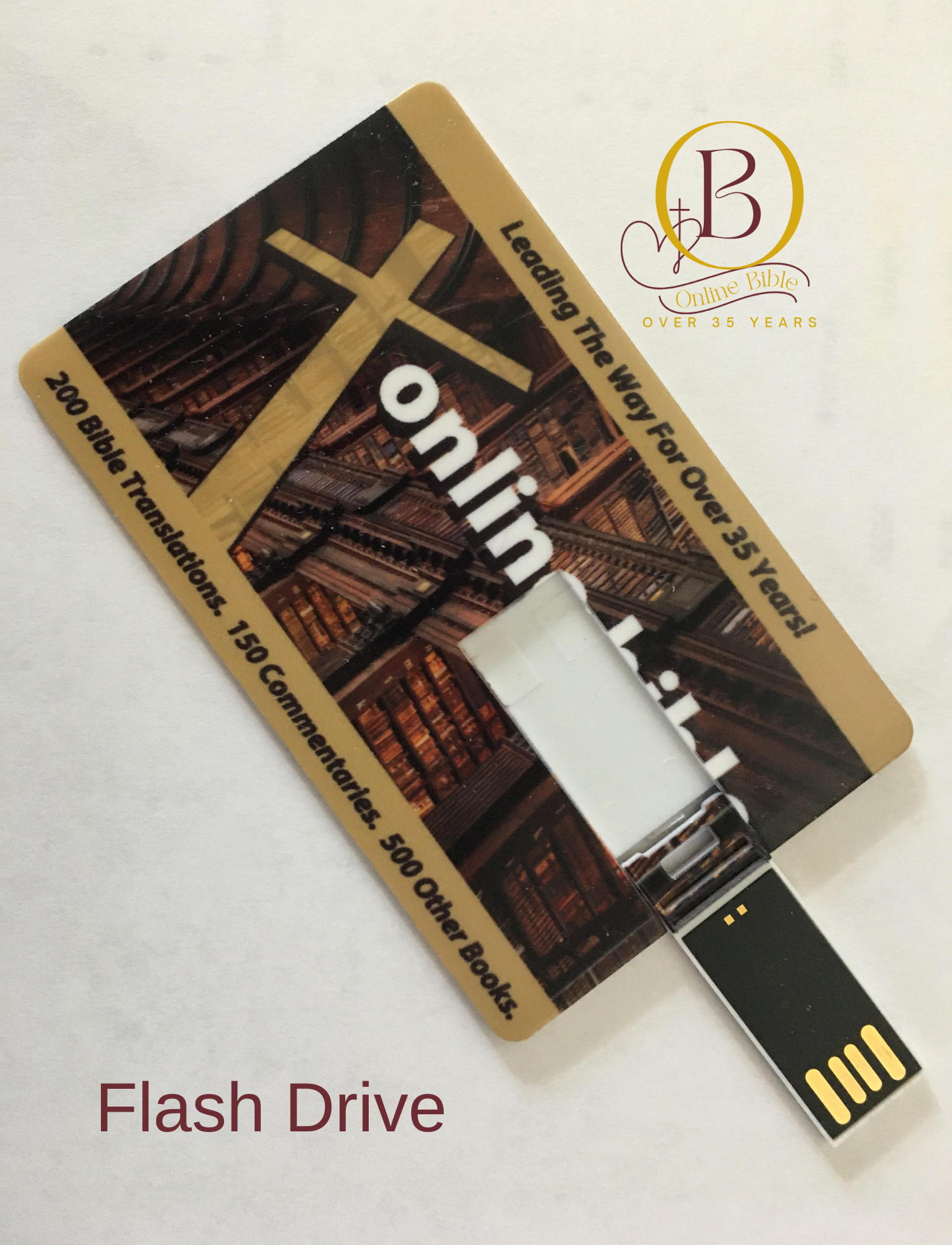
Insert the Online Bible DVD or Flash Drive. (If the installer does not start, click Run on the Start menu and run setup.exe from the drive.)
Select your preferred screen language and click OK.
To install program and data files in the default folders, click Continue. (We recommend that you accept these default folders and allow the program to create them if necessary.) If you will be using the Online Bible on a computer that you don’t own, you can change the drive here to install it on a 8GB or larger USB memory stick rather than your hard drive.
In the Consumer License dialogue box, click Accept.
In the Configure User System dialogue box, select the following as required, and then click OK.
Install CD on the Hard Drive
Leave this option checked in order to run the Online Bible from the hard drive of your PC, not the disc. This is recommended. Installing the selected language groups to your hard drive requires less than 500 megabytes and makes the program run much faster. Uncheck this option only if you intend to use the disc every time you run the Online Bible program, or if after the install you want to copy only some of the modules to your hard drive. (This can also be done later from the Tools menu.)
Install Optional Alexander Scourby Audio
Choose this option to install the Audio Bible. The Alexander Scourby narration the King James Bible is included on the DVD. The Audio Bible module requires 550 megabytes of hard drive space.
Screen Reader Mode
Choose this option to use a screen reader like Jaws or Window Eyes. (This can also be done later from the Tools menu.)
The Primary Version Selection dialogue box, un-check the languages you are sure you will not be using. Click OK.
What’s New You can read the information on screen and click OK, copy it to your clipboard or print the whole file.
At this point the program will automatically copy the CD contents to your chosen drive. Do not interrupt this process; if you wish you can remove modules later using the Tools menu. When the copying is done, the dialogue box will close.
Activating locked versions
If you have purchased unlock codes, store your 6 digit keys and user name in a safe place. You will need these codes if you have to reinstall the program some time. To use them, from the main menu, select Tools > Activate Locked Material. Type the user name exactly as was used to generate the code. For each version: select the version, enter the unlock code, and click OK. As each version is unlocked, it will disappear from the list. Click Exit when done.